
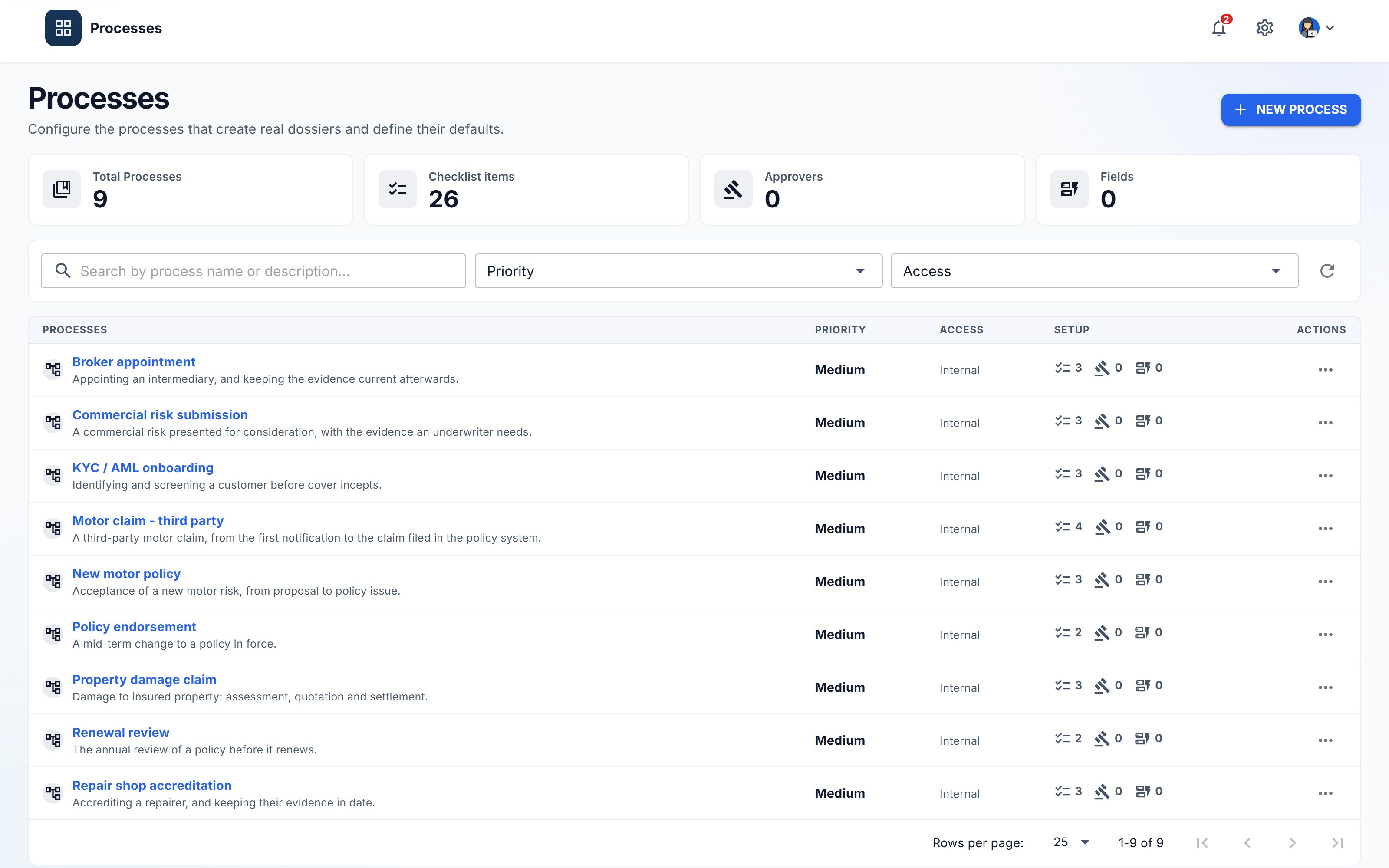
A Process is a template. It declares what a case of one kind must contain, who must sign it, when it is late, and what happens when it finishes. Every dossier made from it inherits all of that.
This is the longest chapter in the manual, and it is the one worth reading slowly. Time spent here is the difference between a system that catches an incomplete case and one that merely stores it.
Before you start
Have your answer ready to one question: what does a case of this kind have to contain before anybody can act on it? Write the list on paper first. Five to eight documents is typical. If your list has twenty, you probably have two processes.
Create one
- Open Processes in the left menu.
- Click New process.
- The wizard has eleven steps. You can leave most of them at their defaults on a first pass — only steps 1, 2 and 3 need real decisions.
Step 1 — Choose an area
Pick the Area the process belongs to. Claims, for the example we are building.
A process belongs to exactly one Area, and moving it later changes where it is found, not what it does.
Step 2 — Identity and defaults
| Field | Required | What it does |
|---|---|---|
| Name | Yes | What appears everywhere a process is listed or chosen. |
| Description | No | Shown under the name. Say what kind of case this is for. |
| Icon | No | Falls back to a default if left blank. |
| Accent colour | No | Visual only. |
| Priority | No | The default priority for dossiers made from this process. |
| Confidentiality level | No | The default confidentiality, which affects who may see those dossiers. |
| Default SLA (hours) | No | Hours from creation until a dossier counts as late. Blank means no SLA, and no case of this process will ever show as overdue. |
| Expiry warning lead days | No | How many days before a document expires the dossier starts warning. This is what fills the Documents expiring panel on the dashboard. |
| Quality Check | No | Whether automatic processing results must pass a human check before the case can complete. |
For the example: name it Motor claim - third party, priority High, SLA 72 hours, expiry warning 30 days.
The two fields people leave blank and later wish they had not are Default SLA and Expiry warning lead days. Both are the sort of thing that looks optional and turns out to be the reason a dashboard is empty. An SLA of nothing means nothing is ever late; a lead time of nothing means nothing ever warns.
Step 3 — Documents
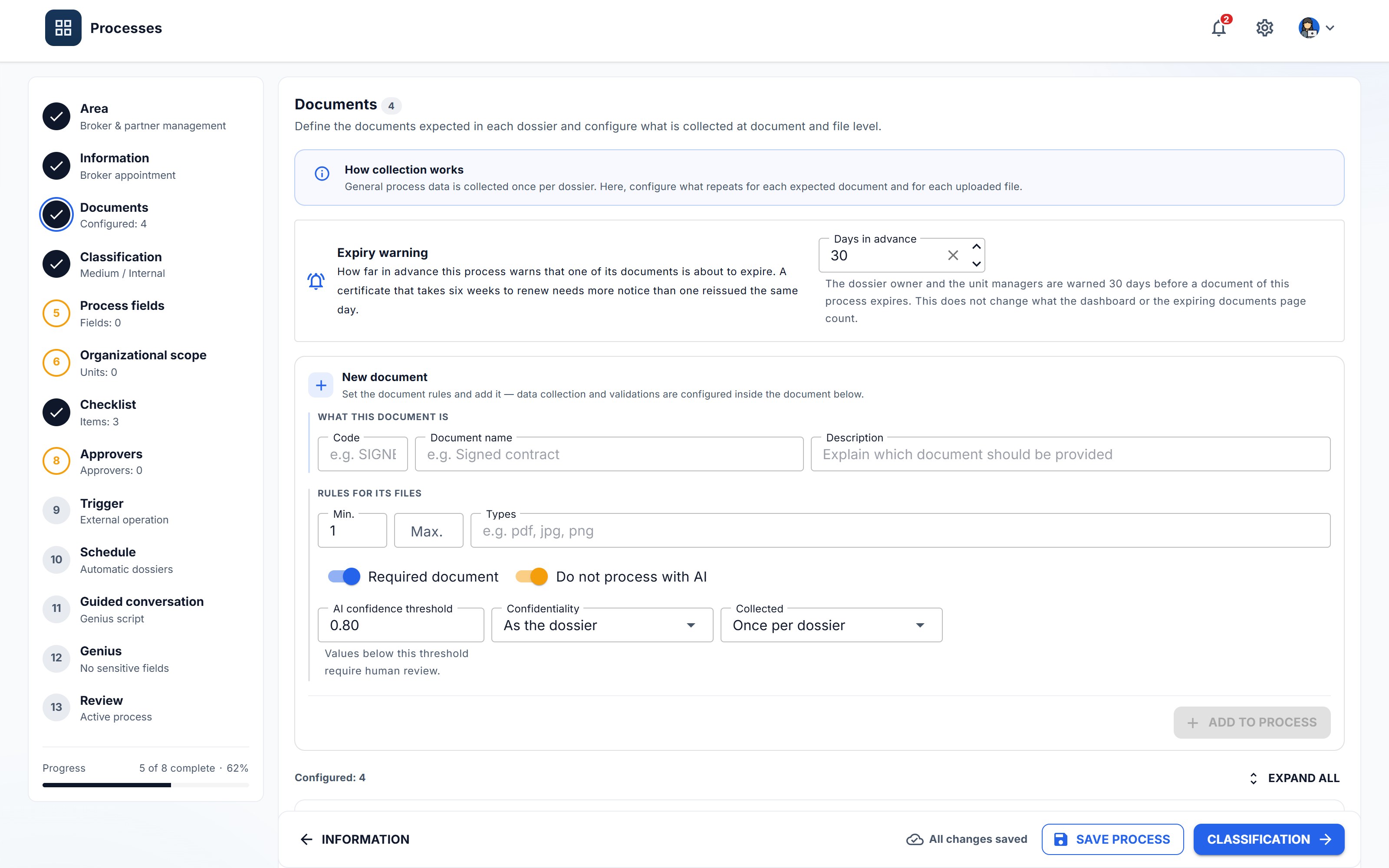
This is the step that matters most. Everything else on this screen configures behaviour; this step decides what a case is.
Each entry you add here is one expected document. When somebody creates a dossier from this process, every entry becomes a slot inside it, already listed, already marked as missing. The person working the case does not have to know what a motor claim needs — the empty dossier tells them.
Think of an entry as a labelled folder that holds one or more files. There is exactly one level; you cannot nest folders inside folders, and that is deliberate — nesting is how document structures become unnavigable.
Click Add document for each one. The fields:
| Field | Default | What it does |
|---|---|---|
| Name | — | What the entry is called in the dossier. |
| Code | — | Optional short identifier, for integrations. |
| Description | — | Shown to whoever has to supply it. Worth writing properly — this is your instruction to them. |
| Expected document types | none | Which kinds of document belong here — invoice, identity document, contract and so on. The document intake files a document of one of these types into this entry, and with an AI confidence threshold an attachment of another type sends the dossier to the Quality Check. Empty, the intake decides by its other rules. |
| Is required | On | A required document that is missing blocks the case from being submitted. This is the control the whole product is built around. |
| Min files | 1 | How many files satisfy the entry. Set 2 or more where one is never enough — photographs of damage, for example. |
| Max files | none | An upper bound, if you want one. |
| Allowed file types | any | Empty, the document takes files of any type. With types (pdf, docx), the server refuses every other file by its name's extension, at every door: the upload into the dossier, the filing from the document intake, the external area and the agents. What is already there does not change, and each dossier keeps the types its document had when it was created. |
| Requires expiration date | Off | Turn this on for anything with a validity period. It is what makes expiry tracking, the Expired status and the expiring-documents reporting work at all. |
| Sort order | position | The order they appear in the dossier. Put the one you always need first, first. |
| Skip AI processing | On | Leave it off if you want the extraction pipeline to read this document. |
| AI confidence threshold | empty | Empty: never. With a value, an attachment of this document whose AI analysis falls below it — or whose type the document does not expect — sends the dossier to the Quality Check, even with the process's Quality Check off. |
| Date order | Day/month/year | How this document's files write dates. Declared, a date like 02/03/2010 is read that way and keeps the AI's confidence. Automatic reads it day first and, since 02/03 could be either, asks for a confirmation; documents created before this setting existed are on Automatic. |
For Motor claim - third party, add these seven:
| Document | Required | Min files | Expires |
|---|---|---|---|
| Accident statement (European form) | Yes | 1 | No |
| Driving licence of the driver | Yes | 1 | Yes |
| Vehicle registration document | Yes | 1 | No |
| Photographs of the damage | Yes | 4 | No |
| Repair estimate | Yes | 1 | No |
| Police report | No | 1 | No |
| Third-party insurer correspondence | No | 1 | No |
Two of those rows are doing something you should notice:
- Photographs, min files 4. One photograph of a damaged car proves almost nothing. Setting a minimum is how you stop a case being marked complete on the strength of a single blurry picture.
- Driving licence, requires expiration date. A licence that expired last month is still a file in the folder. Without this switch the system has no way to know it stopped counting.
- Police report, not required. Not every motor claim has one, and marking it required would block every case that legitimately does not. Required means "this case cannot proceed without it" — not "we would like this".
Step 4 — Fields
Fields collect values, as opposed to documents, which collect files.
They exist at three different scopes, and choosing the wrong one is the most common modelling mistake on this screen:
| Scope | Collected | Example |
|---|---|---|
| Process (this step) | once per dossier | policy number, date of loss, estimated amount |
| Document | once per expected document | the certificate's issuing authority |
| Attachment | once per uploaded file | which page range this scan covers |
Ask: am I describing the case, the kind of document, or this particular file? That question answers it every time.
Each field has:
| Field | What it does |
|---|---|
| Label | What the person filling it in reads. |
| Type | Text, number, date, choice, and so on. |
| Is expiration date | Marks this field as the expiry date, feeding expiry reporting. |
| Is required | Blocks submission while empty. |
| Options | The choices, for choice-type fields. |
| Min / max length | Validation bounds. |
| Population mode | Manual, Extracted, The Genius fills it with this instruction, or Calculated by a rule. On a Dossier field, an extracted value comes from the first file of the dossier that holds it and arrives as a suggestion; it never overwrites a value. |
| Extraction prompt | The instruction — used only in the third mode. The box shows an example for the field's type, and Test with a document shows what the Genius would read from a file already processed in a dossier of this Process, with the unsaved instructions, saving nothing. |
| Extraction label aliases | Other labels the extractor will accept, exactly. In the Extracted mode, the field's label and these are looked for in the document's analysis and, where it does not have them, in the Label: value lines of the document's text; on a document that arrived by e-mail, in the e-mail's text too. |
| Rule | Only in the Calculated by a rule mode, on a Dossier field: the rule in your own words. The Genius translates it once into a formula, which you confirm before saving. |
A field calculated by a rule fills itself in. Write the rule the way you would say it to a colleague, with the fields' names: the reporting month is the month of the scheduled date, or the warranty ends on the invoice date plus 3 years, if the origin is the EU. Click Translate with the Genius, read the formula it proposes in plain words, and confirm it. From then on every dossier calculates the field without the AI: when it is created, and whenever the fields the rule reads change. The reference date is the dossier's effective date, which on a scheduled dossier is the scheduled date, even when it was opened later. The calculated value can be changed by hand; once changed, the rule leaves it alone.
There is no switch to make a field searchable, filterable or readable by the Genius. Every field can be filtered on in the Advanced search (except those of a time or a duration) and every field reaches the Genius, except the sensitive ones. If a field must never reach the assistant — a bank account number, a medical detail — mark it under Sensitive fields, on this process's Genius step: it stays out of the AI and out of the filters, and is only ever filled in by hand.
For the example, add: Policy number (text, required), Date of loss (date, required), Estimated amount (number), Claim type (choice: Own damage / Third party / Total loss).
Step 5 — Checklist
Steps that are not documents. Contact the third-party insurer. Confirm the policy was active on the date of loss. Verify the driver is a named driver.
An incomplete checklist is one of the things that routes a submitted case to Incomplete rather than straight to processing.
Step 6 — Approvers
Who must sign, and in what order. Each entry is a person and a position in the sequence.
Order matters and is not decoration — chapter 6 is about why. For now: add the people, and put them in the sequence you actually want them asked in.
You can leave this empty on a first pass. A process with no approvers skips the decision stage entirely.
Step 7 — Scope
Which parts of the organisation this process applies to. Covered in chapter 8.
Step 8 — Members
Which specific people have access to this process, regardless of scope.
Scope is the rule; Members is the exception. Adding one person here is better than widening the scope to reach them, because a widened scope also reaches things nobody examined.
Step 9 — Genius
How the assistant retrieves from cases of this process.
| Field | What it does |
|---|---|
| Use semantic search | Whether retrieval is semantic rather than literal. |
| Vector search top K | How many candidate passages retrieval considers. |
| Rerank top K | How many survive reranking and reach the answer. |
| Include citations | Whether answers name the documents they used. |
| Retrieval strategy | How candidates are gathered. |
| Search sources / filters / rules | Which sources are in scope, and the constraints applied. |
| Prompt context for AI | Background about this process, given to the assistant. |
| Sensitive fields | The process's fields that never reach the AI or the filters. Every other field reaches the Genius. |
Defaults are fine to start. Chapter 7 explains what to change and when.
The same step holds the addenda card (chapter Working a Dossier), with two switches, both on by default:
- Allows addenda — a completed Dossier of this Process may receive an addendum. Turn it off where a closed case must not gain content, for regulatory reasons.
- An addendum fires the Trigger — shown only when the Process has a Trigger. Turn it off where the Trigger's effect is single or irreversible: opening a policy, issuing a contract number.
Neither affects the addenda already created: each addendum keeps what the Process said when it was created.
Step 10 — Trigger
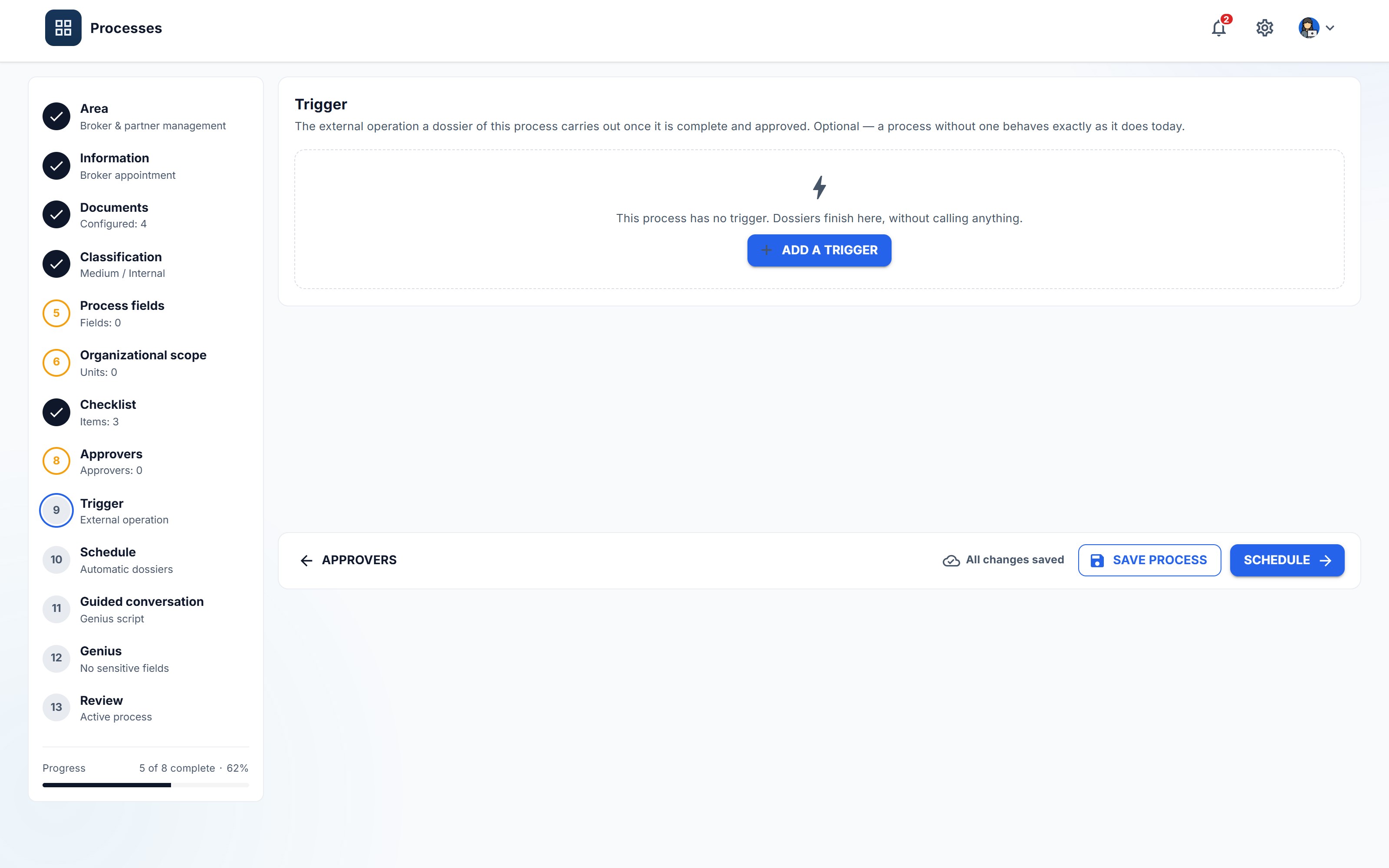
The operation that runs when the process concludes — post to a core system, create a payment instruction, notify a partner.
This is the step that turns a filing system into a process. A document process that ends in a folder has automated the filing and left the work.
Leave it unconfigured for now; a dossier will still complete without it.
Step 11 — Schedule
For processes that should create a dossier on a timetable rather than when somebody asks — a monthly regulatory return, an annual supplier review.
Leave it off for a motor claim, which starts when a customer calls.
Summary
Shows what will be saved. Click Create process.
Now build the rest
Repeat for the other eight. Each one needs its own expected-document list, which is the part worth thinking about; the rest can sit on defaults.
| Area | Process | Expected documents |
|---|---|---|
| Claims | Motor claim - third party | the seven above |
| Claims | Property damage claim | Loss report · Photographs of the damage (min 4) · Repair or replacement quote · Police report |
| Underwriting | New motor policy | Proposal form · Driving licence (expires) · Vehicle registration · No-claims proof |
| Underwriting | Commercial risk submission | Submission pack · Financial statements · Risk survey · Loss history |
| Policy administration | Policy endorsement | Signed endorsement request · Updated policy schedule |
| Policy administration | Renewal review | Renewal questionnaire · Updated loss history · Revised terms |
| Broker & partner management | Broker appointment | Broker agreement · Regulatory registration (expires) · Professional indemnity certificate (expires) · Bank details |
| Compliance & regulatory | KYC / AML onboarding | Identity document (expires) · Proof of address · Beneficial ownership declaration · Screening record |
| Procurement | Repair shop accreditation | Accreditation form · Insurance certificate (expires) · Tax clearance (expires) · Signed agreement |
Note how often expires appears in the last three. Certificates are the documents most likely to be correct on the day they are filed and wrong a year later, and they are exactly what an auditor asks about. Turn the switch on.
What you should have now
- Nine processes, spread across your six areas.
- Each with a real list of expected documents.
- At least one with an SLA and an expiry warning lead time.
- At least three with an expiring document in them.
The Processes list now shows the shape of the business. That list, populated, is the thing worth showing a colleague when explaining what the system does.
A word on changing a process later
Editing a process does not rewrite the cases already made from it. Each dossier keeps the requirements as they were when it was created.
This surprises people, and it is the right behaviour. If a process changed the past, a case approved in March under three requirements would silently become a case that needed five, and the record of its approval would look like a mistake. Nobody edited that case; its history changed underneath it.
New requirements apply to new cases. That is the whole rule.